News
Minecraft Drowned Error Code: How to Fix It on PS5

The Minecraft drowned error code is back on PS5 players’ radar, with Mojang confirming it’s a Microsoft account sign-in failure rather than a save-corrupting bug. Minecraft, developed by Mojang Studios and published by Xbox Game Studios, throws the error as a pop-up reading “We could not sign you in to your Microsoft Account,” cutting players off from Realms, Marketplace items, and synced profiles until it clears. Mojang’s official help center now lists a step-by-step fix, and PS5 players have a few extra wrinkles to watch for.
NEWS SUMMARY CALLOUT
- The Drowned error is a Microsoft account sign-in failure, not a Minecraft world or save issue.
- It blocks access to Realms, Marketplace items, and cross-platform profile data until resolved.
- Mojang’s fix path starts with resetting the sign-in session and ends with a Microsoft password change.
- A common PS5-specific trigger is switching Microsoft accounts without fully unlinking the old one first.
What Is the Drowned Error Code in Minecraft?
Despite the name, the Drowned error has nothing to do with the zombie-like Drowned mob that spawns underwater. It’s an authentication error tied to Bedrock Edition’s Microsoft account sign-in system, which every PS5 player needs to use for cross-play, Realms, and Marketplace purchases. When the sign-in handshake fails, Minecraft shows the Drowned code instead of letting you in.
[NOTE] You can still play locally without a Microsoft account linked, but you’ll lose access to Realms, cloud saves, and Marketplace content until the error clears.
How to Fix the Drowned Error Code on PS5
Work through these fixes in order. Each one resolves the issue for a different cause, starting with the simplest.
- Restart Minecraft and your PS5. Close the game fully from the PS5 control center, then restart the console itself. A stale session token causes a large share of Drowned errors, and a clean restart clears it.
- Check your network connection. Confirm your PS5 has a stable internet connection. The sign-in process needs to reach both PlayStation Network and Microsoft’s servers, so a dropped connection on either end can trigger the error.
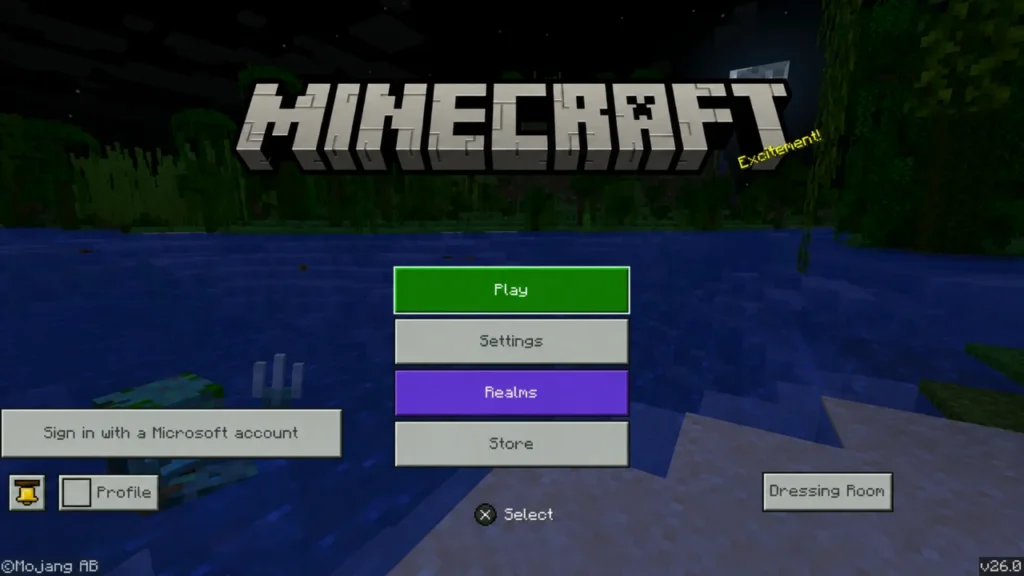
- Reset your Microsoft account sign-in. From the PS5 Library, open Minecraft, head to Settings, then your Profile, and sign out of your Microsoft account before signing back in. This refreshes the session Mojang’s own support team points to as the most common fix.
- Clear your account sign-in data. In the same Profile menu, select “Clear Account Sign in Data,” confirm, wait about 20 seconds, then relaunch the game and sign in again.
- Update Minecraft to the latest version. Go to your PS5 Library, highlight Minecraft, and check for a pending update. Mojang ships sign-in fixes through regular patches, so an outdated build can carry the bug forward.
- Check service status. A Microsoft 365 and Xbox Live outage, or a PlayStation Network disruption, can both produce the Drowned error on their own. Check the Xbox service status page and the PlayStation Network status page before assuming the problem is local.
- Fully unlink before relinking accounts. [WARNING] If you’re switching to a different Microsoft account, make sure the old one is completely unlinked from every PlayStation profile first. Players who skip this step often see the Drowned error paired with a message saying the new account is “already linked” to another PlayStation account.
- Change your Microsoft account password. If nothing else works, reset your Microsoft account password through Microsoft’s account portal. This forces a fresh authentication token and clears sign-in errors tied to expired or corrupted credentials.
When to Contact Support
If you’ve worked through every step above and the Drowned error code keeps appearing, the issue likely sits on Mojang’s or Microsoft’s side rather than your console. Open a support ticket through the Minecraft Help virtual assistant and have your PlayStation account email and Microsoft account email ready, since support will need both to trace the link between them.

What This Means for Minecraft PS5 Players
The most common trap behind the Minecraft drowned error code, based on player reports, isn’t a broken console or a bad password. It’s account-switching: linking a new Microsoft account to a PS5 profile that’s still tied to an old one behind the scenes. That mismatch throws the Drowned error and then compounds it with an “already linked” message that makes the problem look bigger than it is. Unlinking cleanly before you relink saves a lot of back-and-forth with support.
[UPDATE] Mojang’s help center groups Drowned under general Microsoft sign-in errors rather than a PS5-specific bug, so the same fix order applies across Xbox, Switch, and mobile Bedrock versions if you run into it there too.
Frequently Asked Questions
What does the Drowned error code mean in Minecraft?
It means Minecraft couldn’t sign you in to your Microsoft account. You’ll still be able to play offline, but Realms, Marketplace items, and synced profile data stay locked until the sign-in succeeds.
How do I clear account sign-in data in Minecraft on PS5?
Open Minecraft, go to Settings, then Profile, and select “Clear Account Sign in Data.” Confirm the action, wait about 20 seconds, then relaunch the game and sign back in with your Microsoft account.
Why does Minecraft say my Microsoft account is already linked to another PlayStation account?
This usually happens when an old Microsoft account wasn’t fully unlinked before a new one was added. Unlink the previous account from every PlayStation profile, then try linking the new one again.
Is the Drowned error code only on PS5?
No. The Minecraft drowned error code is a general Microsoft account sign-in error that can appear on Xbox, Nintendo Switch, mobile, and Windows versions of Minecraft Bedrock Edition, not just PS5.
Will I lose my Minecraft world if I see the Drowned error code?
No. The Drowned error affects account sign-in, not your saved worlds. Local single-player saves stay intact even while the error is active.