Apps & Services
Samsung Good Lock Gets a Major Upgrade with One UI 8.5: What’s Actually Worth Your Attention

If you’ve spent any time customizing your Samsung phone, you already know Good Lock isn’t just another settings menu. It’s the toolkit that turns One UI into something that feels genuinely yours. With One UI 8.5 rolling out in beta, the Good Lock team has pushed out updates across several modules, and some of these additions are more substantial than the usual incremental tweaks.
The developers recently outlined what’s new through Samsung’s Korean community forum, and while some features went live days ago, others are still locked behind the beta requirement. Here’s what matters if you’re considering the jump to One UI 8.5, or just planning ahead for the stable release.
LockStar brings creative control to your lock screen
LockStar has always been about pushing past the stock lock screen limitations, and this update doesn’t hold back. The headline addition is customizable unlock animations. These aren’t just different fade effects, but distinct visual transitions that change how unlocking your device actually feels.
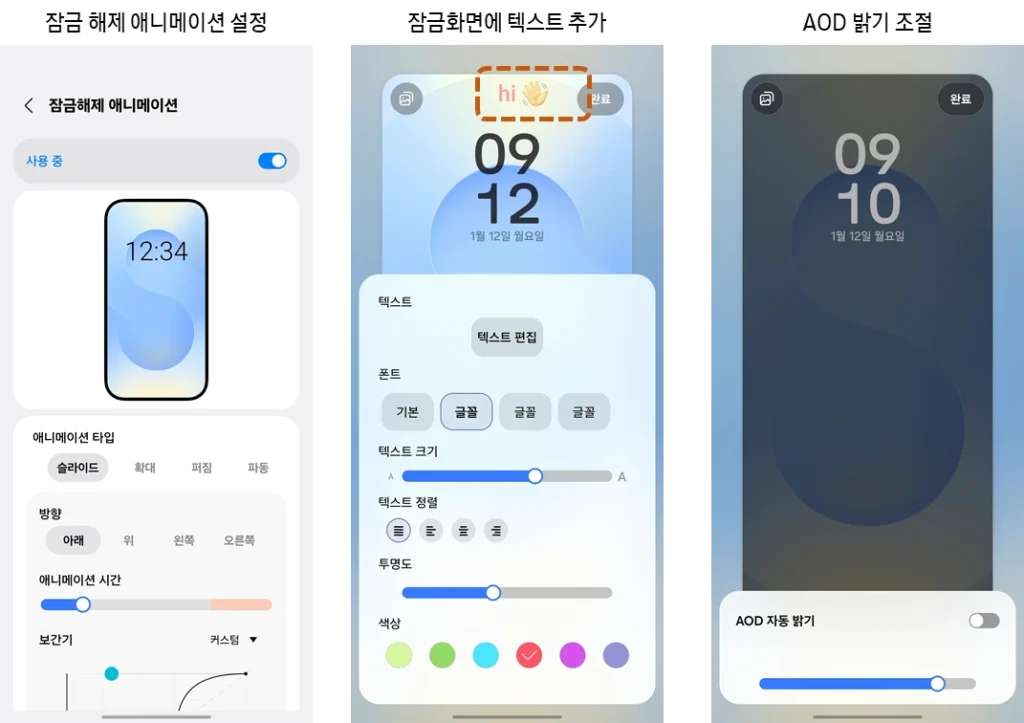
Beyond animations, you can now place custom text directly on both the lock screen and Always On Display. This feature technically works on One UI 8.0 too, but it’s being promoted heavily with the 8.5 release. More useful for some users is manual brightness control for the Always On Display, though this only works on devices with full-screen AOD support like the Galaxy S24 series and newer flagships.
The text addition feels overdue. Being able to drop a quick reminder or personal note on your lock screen without relying on widgets or third-party apps adds a layer of utility that wasn’t there before.
QuickStar gets a layout overhaul
QuickStar has quietly become one of the more powerful Good Lock modules, letting you reshape the quick settings panel, notification shade, and status bar. With One UI 8.5, it’s picking up features that should have existed from the start.
First, landscape mode support for the quick settings panel. If you use your phone horizontally often, whether for media or productivity, this alone justifies the update. You can finally access toggles without rotating back to portrait.
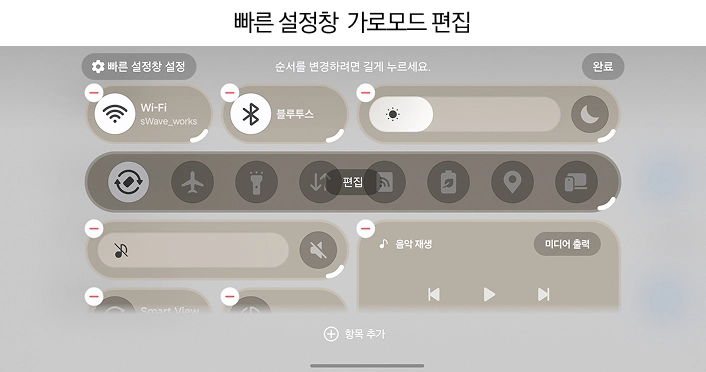
Panel resizing is another standout. You’re no longer stuck with Samsung’s default dimensions. Want larger tiles? Smaller ones to fit more on screen? It’s adjustable now, and the flexibility shows in the interface responsiveness.
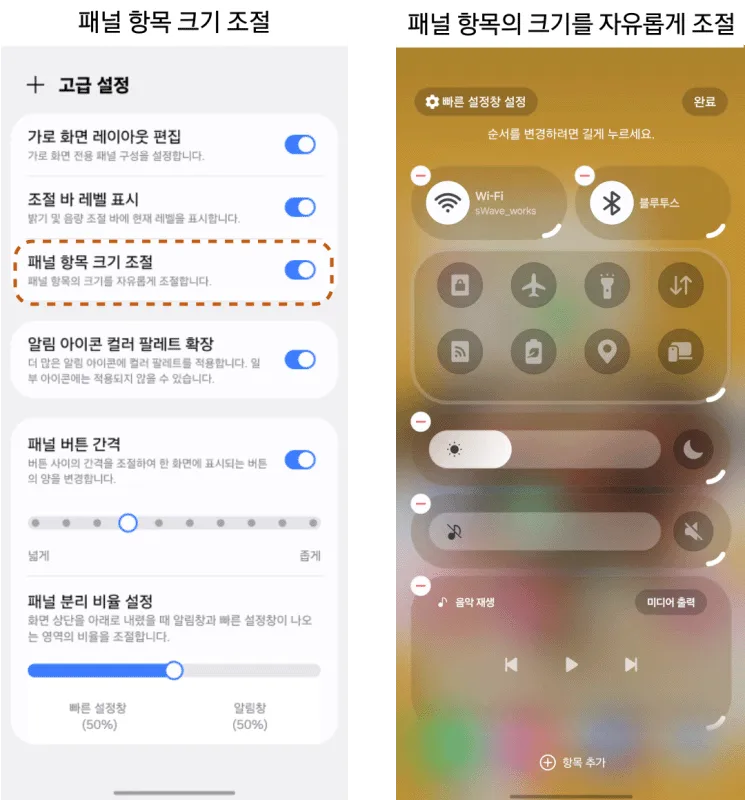
Custom background images for quick settings sections add visual flair, but the practical win is numerical values on control bars. Instead of guessing where your brightness or volume sits on a vague slider, you get actual numbers. Small detail, massive quality-of-life improvement.
Home Up expands widget and folder flexibility
Home Up has always targeted power users who want granular control over the launcher, and this version doubles down on customization depth.
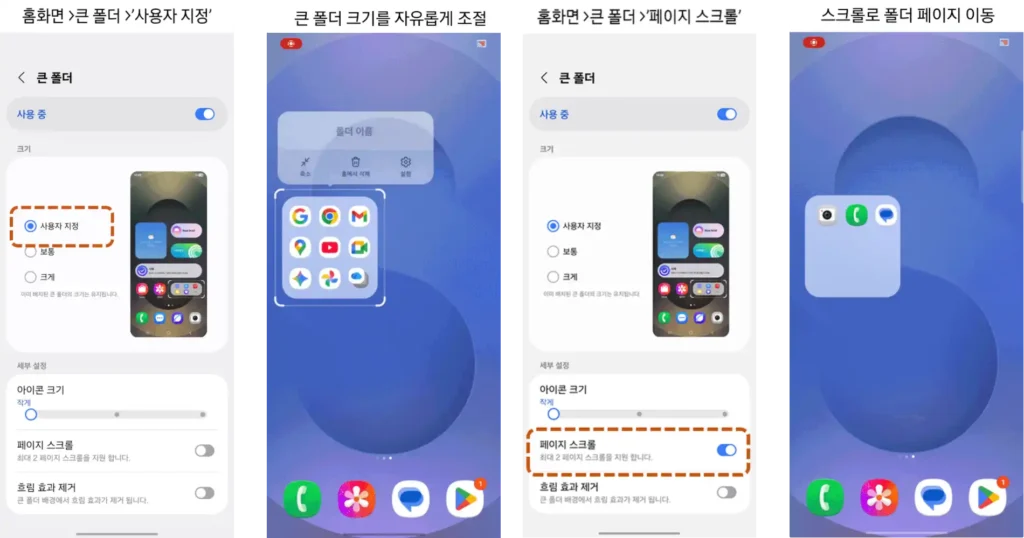
Large folders, which Samsung introduced to give app collections more visual weight, can now be resized. You’re not stuck with the default proportions anymore, and you can tweak background blur and scrolling behavior to suit your workflow.
Icon labels get more attention too. You can change the text itself, not just fonts, and adjust colors individually. If you’ve ever wanted labels to match a specific theme or disappear entirely for a cleaner look, that’s here now.
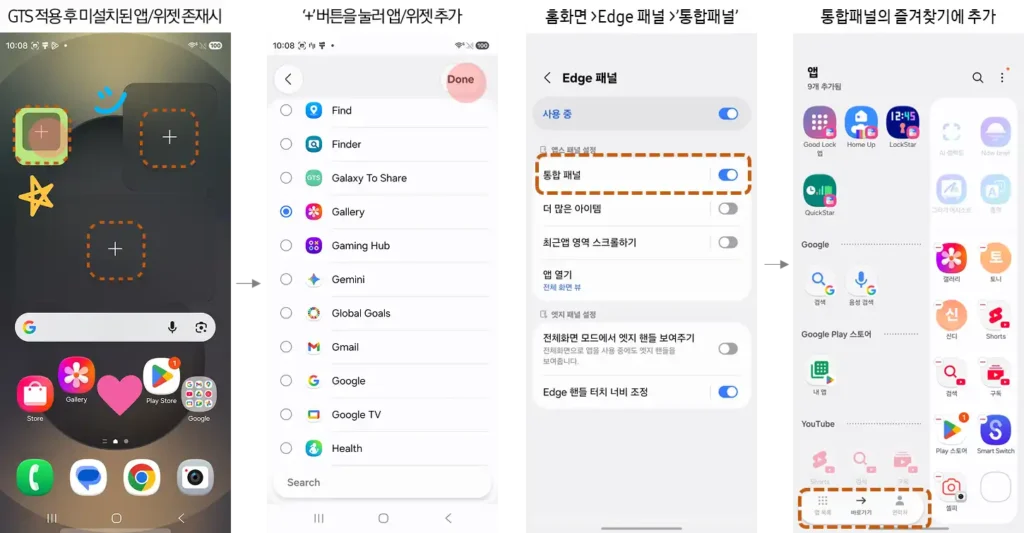
Widget customization goes further with content resizing and the option to strip away background blur. Not every widget plays nicely with these settings, but for the ones that do, it opens up layout possibilities that weren’t accessible before.
The edge panel sees improvements as well, with a new Integrated Panel feature consolidating apps, contacts, and tasks into one view. More importantly, if you’ve shared a screen layout with someone and they’re missing apps or widgets you had, the layout won’t break. It adapts instead of leaving blank spaces or distorted grids.
Gesture controls add a toggle for the swipe-down action that switches to your last-used app. If you’ve accidentally triggered this and found it more annoying than helpful, you can finally turn it off.
Theme Park adds subtle visual effects
Theme Park’s latest changes are modest but deliberate. The new Emboss effect in the Effects section adds a raised, tactile look to icons. It’s not dramatic, but it works well if you’re building a theme around depth and texture.
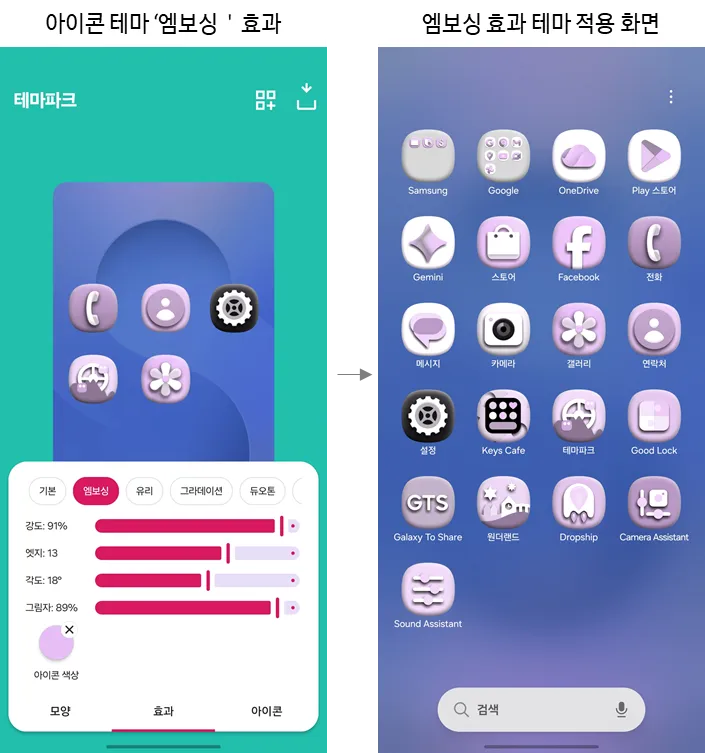
The Monochrome option, now checked by default in the Icon section, lets you strip icons down to a single-color style during customization. This is useful for minimalist setups where color consistency matters more than brand recognition.
Neither feature radically changes what Theme Park does, but both slot into existing workflows without friction.
Game Booster Plus targets performance tweaks
Game Booster Plus hasn’t seen as much love in previous updates, but One UI 8.5 brings features that competitive and casual gamers will actually use.
Button remapping for gamepads is the big one. If you use a controller with your phone, you’re no longer stuck with default mappings. Reassign buttons to match your muscle memory from other platforms.
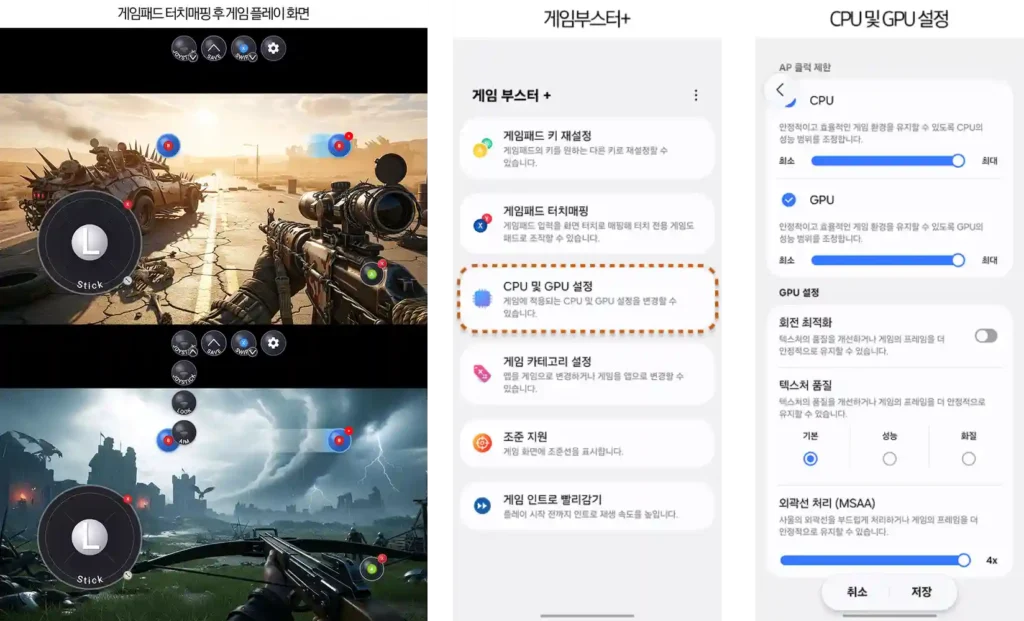
Per-game CPU and GPU adjustments let you optimize performance based on what you’re playing. A lightweight puzzle game doesn’t need the same resources as a graphically intensive shooter, and now you can allocate accordingly without diving into developer options.
Faster game launches aim to cut down loading times. It’s unclear exactly how much time this saves, but reducing wait between tapping an icon and actually playing is always welcome.
What you need to know about availability
Some of these features are already live if you’ve updated the individual Good Lock modules recently. Others require One UI 8.5, which means you either need to be running the beta on a Galaxy S25, S25 Plus, or S25 Ultra, or you’re waiting for the stable release.
Samsung typically pushes stable One UI updates a few weeks after launching the next flagship series, so expect broader availability around the Galaxy S26 announcement. If you’re not on a device eligible for the beta, you’re looking at a wait measured in weeks, not days.
The beta itself has been relatively stable based on early reports, but it’s still a beta. If your phone is a daily driver you depend on for work or essential communication, holding off until the stable release is the safer move.
Is it worth the upgrade?
Good Lock has always been about options, not forced changes. If you don’t customize your phone beyond wallpapers and ringtones, One UI 8.5’s Good Lock updates won’t mean much to you. But if you’re someone who tweaks settings until the interface feels exactly right, several of these additions are legitimately useful.
QuickStar’s landscape mode and numerical sliders fix real frustrations. Home Up’s widget and folder controls give you layout precision that was missing. LockStar’s unlock animations and manual AOD brightness are nice-to-haves that add polish without complicating things.
Game Booster Plus improvements matter if you game on your phone regularly, and Theme Park’s additions serve a specific aesthetic crowd. None of this is revolutionary, but it doesn’t need to be. Good Lock has always been about incremental refinement, and One UI 8.5 continues that trend without trying to reinvent what already works.
If you’re already invested in Good Lock, these updates justify the move to One UI 8.5 once it’s stable. If you’ve never explored the suite, this version gives you more reasons to start.